Intake Triage
Step-by-step guide for Law Firms users using Intake Triage.
Industry: Law Firms — this app appears only on tenants provisioned for that vertical.
Triage new matters and intake forms.
Workspace fields
These labels match the live EZ4Youtech workspace (sidebar provider + main panel):
- Intake narrative (required) — textarea field in the workspace
- Incident / filing date (optional) — date field in the workspace
- Parties involved (optional) — text field in the workspace
- Firm priorities (optional) — select field in the workspace
Primary action button: Score lead
Workspace overview
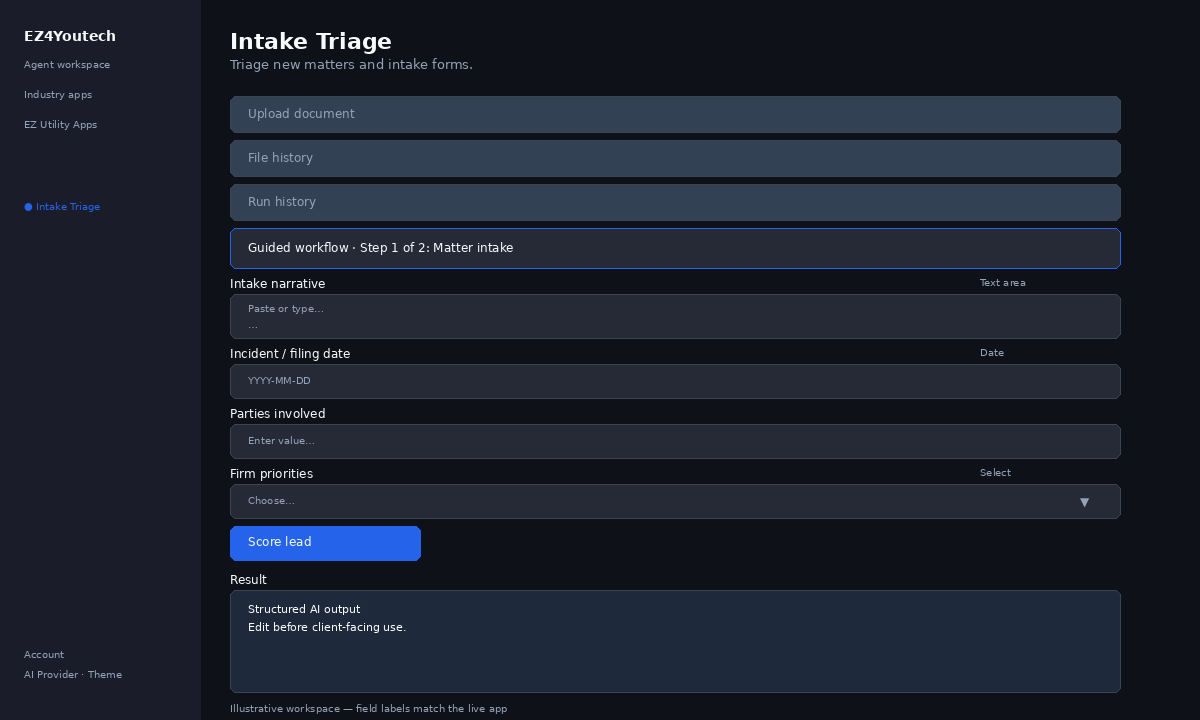
Before you start
- Log in as a user on your company tenant (admins set up BYOK separately).
- Confirm your tenant admin has saved at least one AI provider key (OpenAI, Together, or Anyscale).
- Verify your plan includes Standard apps — disabled apps show the plan required to unlock them.
Step-by-step
- Open the app — In the workspace sidebar, select Intake Triage under Industry apps.
- Choose your AI provider — In the sidebar, pick the BYOK provider your admin configured (OpenAI, Together, or Anyscale).
- Upload document (optional) — Under Upload document, attach a file and click Upload. Enable Run after upload to fill the workspace and run in one step.
- Use file history — Under File history, select a saved file and click Load file to populate your text field.
- Use run history — Under Run history, pick a prior run and click View run to restore inputs and output.
- Guided step 1: Matter intake — In Guided workflow (step 1 of 2), complete Intake narrative, Incident / filing date. Use Next → between steps.
- Guided step 2: Parties & routing — In Guided workflow (step 2 of 2), complete Parties involved, Firm priorities. Use Next → between steps.
- Run the app — Click Score lead. Review the Result section and download if needed.
- Review before client use — Confirm facts, dates, and compliance language. Do not paste full SSN or card numbers.
Example inputs
Paste similar data in the workspace — use only data you are allowed to process. Field names match the live product.
Intake narrative
Web form: roof replacement, timeline 2–3 months, budget band $18–22k, homeownerPaste CRM notes, form answers, or call summary — source, urgency, budget signals.
Incident / filing date
2026-03-15Incident or filing date for urgency review.
Parties involved
Plaintiff: Lee Family Trust · Defendant: Oak Holdings · Incident date: 3/15/2026Parties, incident or filing dates, and jurisdiction if known.
Firm priorities
fit, urgency, budget, and decision-maker accessHow you want leads ranked (optional; defaults work for most teams).
Try these scenarios
Adapt these prompts to your client — do not paste payment card numbers, SSNs, or full IDs.
- Score this trade-show lead for commercial HVAC install timeline.
- Inbound web lead: budget mentioned but decision-maker unclear.
- Re-engage cold lead from 90 days ago with new promo interest.
Expected result
Shape of the AI output in the Result panel — review before client use.
Example output (lead score)
- Score: e.g. 72/100 with brief rationale
- Fit / urgency / readiness tags based on your criteria
- Suggested next action: call, nurture, or disqualify
Tips
- Keep prompts specific: include dates, names, and constraints for better drafts.
- Do not paste full payment card or government ID numbers — use business-appropriate excerpts only.
- If the app is locked, ask your admin to upgrade the tenant plan or confirm BYOK setup.