Patient Education Explainer
Step-by-step guide for Medical users using Patient Education Explainer.
Industry: Medical — this app appears only on tenants provisioned for that vertical.
Plain-language explanations of conditions, meds, and follow-up care.
Workspace fields
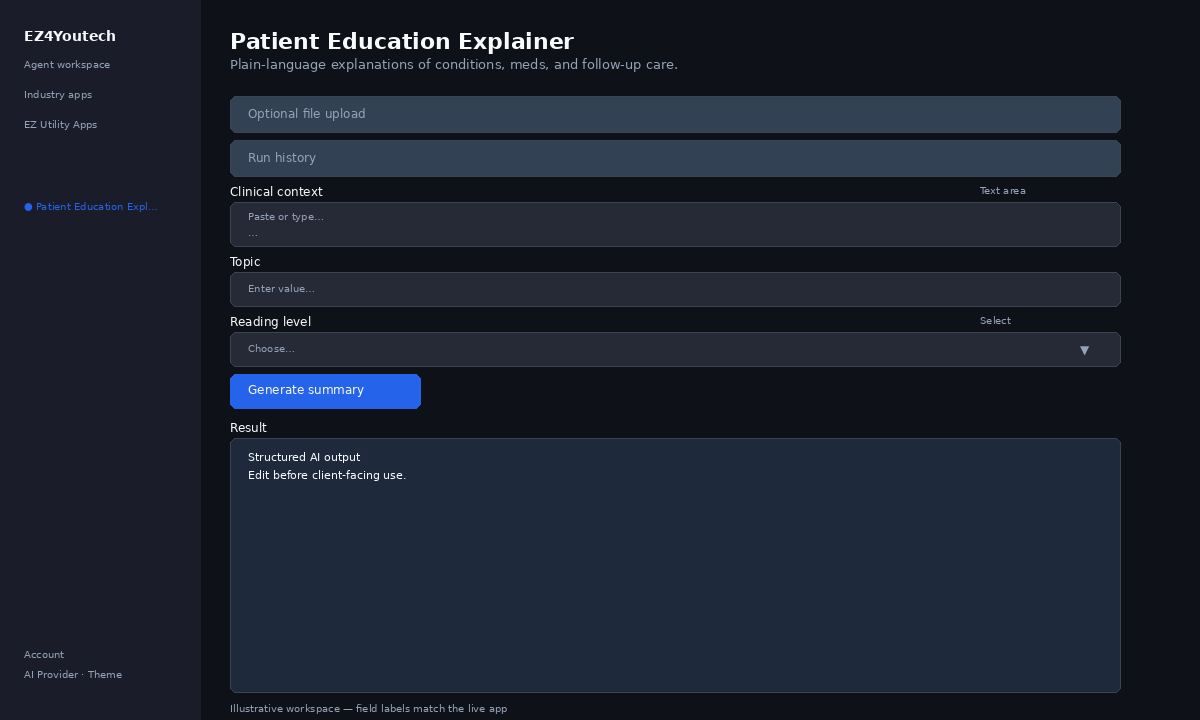
These labels match the live EZ4Youtech workspace (sidebar provider + main panel):
- Topic (required) — text field in the workspace
- Clinical context (required) — textarea field in the workspace
- Reading level (required) — select field in the workspace
Primary action button: Generate summary
Workspace overview
Before you start
- Log in as a user on your company tenant (admins set up BYOK separately).
- Confirm your tenant admin has saved at least one AI provider key (OpenAI, Together, or Anyscale).
- Verify your plan includes Basic apps — disabled apps show the plan required to unlock them.
Step-by-step
- Open the app — In the workspace sidebar, select Patient Education Explainer under Industry apps.
- Choose your AI provider — In the sidebar, pick the BYOK provider your admin configured (OpenAI, Together, or Anyscale).
- Optional file upload — Expand Optional file upload if you have a PDF or DOCX. Otherwise paste directly in Workspace.
- Use run history — Under Run history, pick a prior run and click View run to restore inputs and output.
- Complete additional inputs — In Workspace, fill Topic, Reading level before you run.
- Enter Clinical context — In Workspace, add content to Clinical context (paste text or load from upload).
- Run the app — Click Generate summary. Review the Result section and download if needed.
- Review before client use — Confirm facts, dates, and compliance language. Do not paste full SSN or card numbers.
Example inputs
Paste similar data in the workspace — use only data you are allowed to process. Field names match the live product.
Topic
3BR suburban listing — open house 5/24Product, property, service, or campaign focus.
Clinical context
Diagnosis label, med name, instructions from chartReading level
StandardSimple for patient handouts; Clinical for chart notes.
Try these scenarios
Adapt these prompts to your client — do not paste payment card numbers, SSNs, or full IDs.
- Explain new blood pressure medication at grade-8 reading level.
- Post-procedure discharge instructions — when to call the clinic.
Expected result
Shape of the AI output in the Result panel — review before client use.
Example output (summary)
- Overview: 2–3 sentences on document type and parties
- Key terms: Coverage limits, dates, amounts you provided
- Risks / gaps: Exclusions or missing data called out explicitly
- Next steps: What a human should verify before client use
Tips
- Keep prompts specific: include dates, names, and constraints for better drafts.
- Do not paste full payment card or government ID numbers — use business-appropriate excerpts only.
- If the app is locked, ask your admin to upgrade the tenant plan or confirm BYOK setup.