Grant LOI Drafter
Step-by-step guide for Nonprofit users using Grant LOI Drafter.
Industry: Nonprofit — this app appears only on tenants provisioned for that vertical.
Draft letters of intent for grant opportunities.
Workspace fields
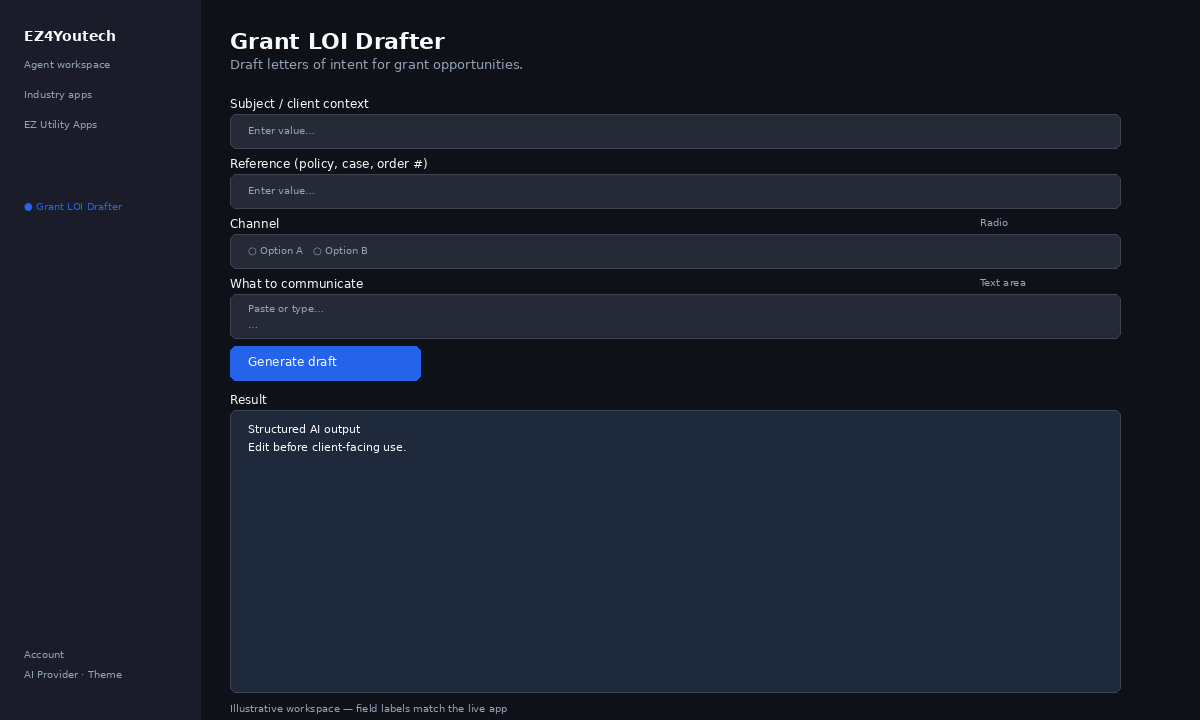
These labels match the live EZ4Youtech workspace (sidebar provider + main panel):
- Subject / client context (required) — text field in the workspace
- Reference (policy, case, order #) (optional) — text field in the workspace
- Channel (required) — radio field in the workspace
- What to communicate (required) — textarea field in the workspace
Primary action button: Generate draft
Workspace overview
Before you start
- Log in as a user on your company tenant (admins set up BYOK separately).
- Confirm your tenant admin has saved at least one AI provider key (OpenAI, Together, or Anyscale).
- Verify your plan includes Standard apps — disabled apps show the plan required to unlock them.
Step-by-step
- Open the app — In the workspace sidebar, select Grant LOI Drafter under Industry apps.
- Choose your AI provider — In the sidebar, pick the BYOK provider your admin configured (OpenAI, Together, or Anyscale).
- Fill Subject / client context — Enter Subject / client context (required) in the workspace form.
- Fill Reference (policy, case, order #) — Enter Reference (policy, case, order #) (optional) in the workspace form.
- Fill Channel — Enter Channel (required) in the workspace form.
- Fill What to communicate — Enter What to communicate (required) in the workspace form.
- Run the app — Click Generate draft. Output appears in the Result panel with download option.
- Review before client use — Confirm facts, dates, and compliance language. Do not paste full SSN or card numbers.
Example inputs
Paste similar data in the workspace — use only data you are allowed to process. Field names match the live product.
Subject / client context
Maria Lopez — auto claim filed 4/10; awaiting adjuster photosClient or claimant name plus situation in plain language.
Reference (policy, case, order #)
CLM-2026-44102Policy, case, or order number your team already uses internally.
Channel
EmailHow you will send this message.
What to communicate
Explain next steps and document upload link. Do not promise payment amounts.What the client should understand or do after reading the draft.
Try these scenarios
Adapt these prompts to your client — do not paste payment card numbers, SSNs, or full IDs.
- Status update: waiting on third-party estimate — no payment promise.
- Request photos of damage with a secure upload link placeholder.
- Explain denial reason in empathetic tone using only provided facts.
Expected result
Shape of the AI output in the Result panel — review before client use.
Example output (client message)
- Subject line and short body aligned to your message goal
- Tone: Professional, no invented settlement amounts
- Call to action: e.g. upload photos, call adjuster, review documents
Tips
- Keep prompts specific: include dates, names, and constraints for better drafts.
- Do not paste full payment card or government ID numbers — use business-appropriate excerpts only.
- If the app is locked, ask your admin to upgrade the tenant plan or confirm BYOK setup.