IPS Summarizer
Step-by-step guide for Wealth Advisory users using IPS Summarizer.
Industry: Wealth Advisory — this app appears only on tenants provisioned for that vertical.
Summarize investment policy statements for reviews.
Workspace fields
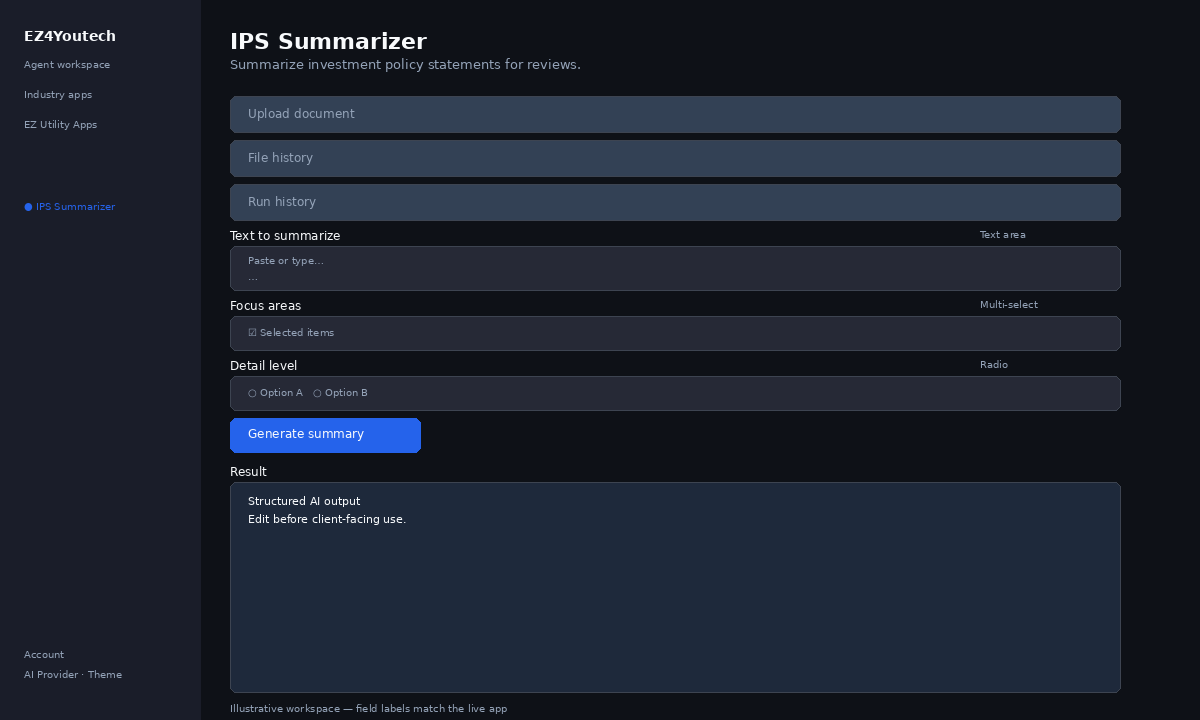
These labels match the live EZ4Youtech workspace (sidebar provider + main panel):
- Text to summarize (required) — textarea field in the workspace
- Focus areas (optional) — multiselect field in the workspace
- Detail level (optional) — radio field in the workspace
Primary action button: Generate summary
Workspace overview
Before you start
- Log in as a user on your company tenant (admins set up BYOK separately).
- Confirm your tenant admin has saved at least one AI provider key (OpenAI, Together, or Anyscale).
- Verify your plan includes Elite apps — disabled apps show the plan required to unlock them.
Step-by-step
- Open the app — In the workspace sidebar, select IPS Summarizer under Industry apps.
- Choose your AI provider — In the sidebar, pick the BYOK provider your admin configured (OpenAI, Together, or Anyscale).
- Upload document (optional) — Under Upload document, attach a file and click Upload. Enable Run after upload to fill the workspace and run in one step.
- Use file history — Under File history, select a saved file and click Load file to populate your text field.
- Use run history — Under Run history, pick a prior run and click View run to restore inputs and output.
- Complete additional inputs — In Workspace, fill Focus areas, Detail level before you run.
- Enter Text to summarize — In Workspace, add content to Text to summarize (paste text or load from upload).
- Run the app — Click Generate summary. Review the Result section and download if needed.
- Review before client use — Confirm facts, dates, and compliance language. Do not paste full SSN or card numbers.
Example inputs
Paste similar data in the workspace — use only data you are allowed to process. Field names match the live product.
Text to summarize
[IPS Summarizer · wealth_advisory] Paste a contract, policy, report, or letter excerpt (2–3 paragraphs). The app returns a structured summary with key dates and risks — not legal advice.Paste policy, contract, or report text — or use Upload document / Load file to fill this field.
Focus areas
coverage limits, exclusions, renewal date, and action itemsTell the AI what sections or risks to emphasize in the summary.
Detail level
StandardBrief for quick scan; Detailed for file notes.
Try these scenarios
Adapt these prompts to your client — do not paste payment card numbers, SSNs, or full IDs.
- Summarize for a client email in plain language (no legalese).
- List only deadlines, dollar amounts, and party names found in the text.
- Highlight exclusions and risks you should double-check.
Expected result
Shape of the AI output in the Result panel — review before client use.
Example output (summary)
- Overview: 2–3 sentences on document type and parties
- Key terms: Coverage limits, dates, amounts you provided
- Risks / gaps: Exclusions or missing data called out explicitly
- Next steps: What a human should verify before client use
Tips
- Keep prompts specific: include dates, names, and constraints for better drafts.
- Do not paste full payment card or government ID numbers — use business-appropriate excerpts only.
- If the app is locked, ask your admin to upgrade the tenant plan or confirm BYOK setup.