AI Email Automation
Step-by-step guide for users using AI Email Automation on EZ4Youtech.
Draft professional emails from context and key points.
Workspace fields
These labels match the live EZ4Youtech workspace (sidebar provider + main panel):
- Email purpose (required) — text field in the workspace
- Tone (required) — text field in the workspace
- Recipient / context (required) — text field in the workspace
- Key points to include (required) — text field in the workspace
Primary action button: Generate email
Workspace overview
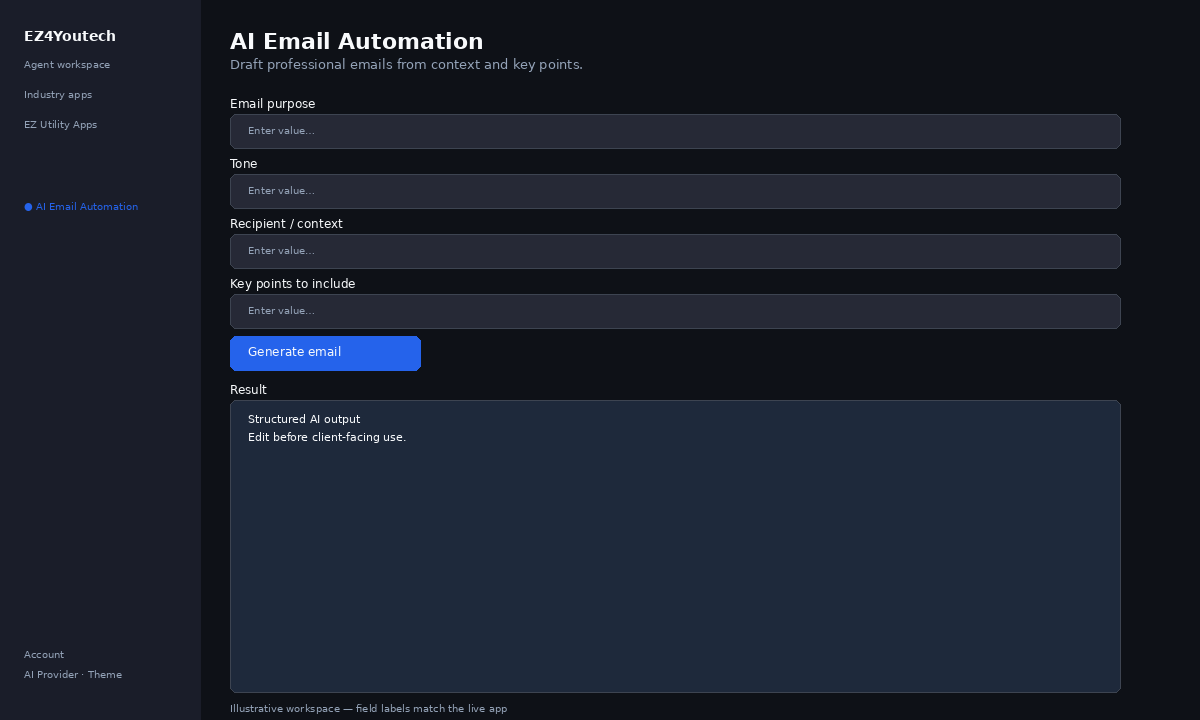
Before you start
- Log in as a user on your company tenant (admins set up BYOK separately).
- Confirm your tenant admin has saved at least one AI provider key (OpenAI, Together, or Anyscale).
- Verify your plan includes Basic apps — disabled apps show the plan required to unlock them.
Step-by-step
- Open the app — In the workspace sidebar, select AI Email Automation under EZ Utility Apps.
- Choose your AI provider — In the sidebar, pick the BYOK provider your admin configured (OpenAI, Together, or Anyscale).
- Set Email purpose — Choose or enter Email purpose so the draft matches your scenario.
- Set Tone — Choose or enter Tone so the draft matches your scenario.
- Set Recipient / context — Choose or enter Recipient / context so the draft matches your scenario.
- Set Key points to include — Choose or enter Key points to include so the draft matches your scenario.
- Generate the email — Click Generate email. Edit subject and body before sending externally.
- Review before client use — Confirm facts, dates, and compliance language. Do not paste full SSN or card numbers.
Example inputs
Paste similar data in the workspace — use only data you are allowed to process. Field names match the live product.
Email purpose
Schedule onboarding calle.g. Welcome email, payment reminder, meeting request.
Tone
friendlyprofessional · friendly · formal · concise
Recipient / context
New tenant admin at Acme Dental — first login completed todayRole, company, and why they are receiving this email.
Key points to include
Welcome to the platform
Book a 30-minute setup call
Link to getting-started guide
Bullets the body must cover; one idea per line.
Try these scenarios
Adapt these prompts to your client — do not paste payment card numbers, SSNs, or full IDs.
- Welcome email after first login with setup call link.
- Payment reminder — polite, include amount and due date you verify.
- Meeting request with two time options next week.
Expected result
Shape of the AI output in the Result panel — review before client use.
Example output (email)
- Subject line ready to edit
- Body with greeting, bullets from key points, and sign-off
- Tone matches your selection (friendly / professional / etc.)
Tips
- Keep prompts specific: include dates, names, and constraints for better drafts.
- Do not paste full payment card or government ID numbers — use business-appropriate excerpts only.
- If the app is locked, ask your admin to upgrade the tenant plan or confirm BYOK setup.