AI Translation & Localization
Step-by-step guide for users using AI Translation & Localization on EZ4Youtech.
Translate and localize customer-facing content for multiple markets.
Workspace fields
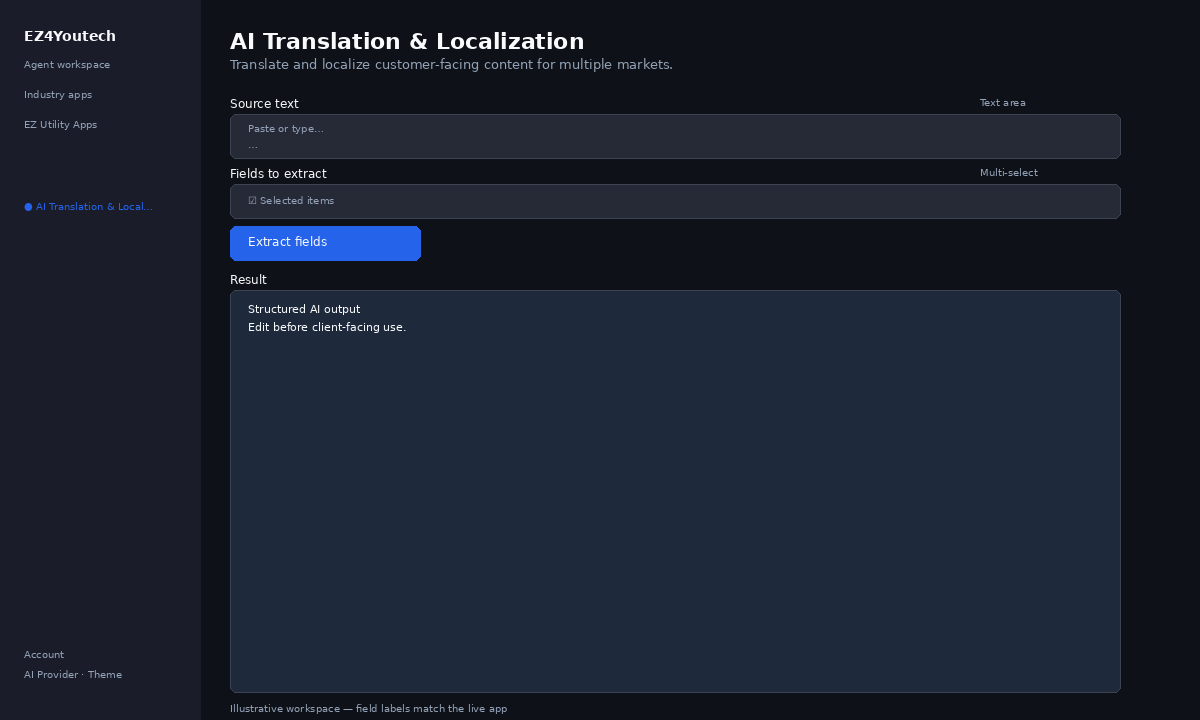
These labels match the live EZ4Youtech workspace (sidebar provider + main panel):
- Source text (required) — textarea field in the workspace
- Fields to extract (required) — multiselect field in the workspace
Primary action button: Extract fields
Workspace overview
Before you start
- Log in as a user on your company tenant (admins set up BYOK separately).
- Confirm your tenant admin has saved at least one AI provider key (OpenAI, Together, or Anyscale).
- Verify your plan includes Standard apps — disabled apps show the plan required to unlock them.
Step-by-step
- Open the app — In the workspace sidebar, select AI Translation & Localization under EZ Utility Apps.
- Choose your AI provider — In the sidebar, pick the BYOK provider your admin configured (OpenAI, Together, or Anyscale).
- Fill Source text — Enter Source text (required) in the workspace form.
- Fill Fields to extract — Enter Fields to extract (required) in the workspace form.
- Run the app — Click Extract fields. Output appears in the Result panel with download option.
- Review before client use — Confirm facts, dates, and compliance language. Do not paste full SSN or card numbers.
Example inputs
Paste similar data in the workspace — use only data you are allowed to process. Field names match the live product.
Source text
[AI Translation & Localization · general] FORM 5500 excerpt — Plan year 2025. Sponsor: Acme Staffing LLC. Participants: 142. Administrator contact block on page 2...Paste policy, contract, or report text — or use Upload document / Load file to fill this field.
Fields to extract
patient name, Rx number, prescriber, quantity, refills remainingList the labels you want extracted from the pasted source text.
Try these scenarios
Adapt these prompts to your client — do not paste payment card numbers, SSNs, or full IDs.
- Extract patient and Rx fields from faxed intake text.
- Pull vendor, date, and line totals from invoice paste.
- Map insurance form fields from scanned paragraph text.
Expected result
Shape of the AI output in the Result panel — review before client use.
Example output (extraction)
- Field table: name → value pairs you requested
- Missing fields called out when not found in source
- Confidence notes for ambiguous lines
Tips
- Keep prompts specific: include dates, names, and constraints for better drafts.
- Do not paste full payment card or government ID numbers — use business-appropriate excerpts only.
- If the app is locked, ask your admin to upgrade the tenant plan or confirm BYOK setup.