
Industry: Real Estate: this app appears only in company workspaces set up for that vertical.
Upload 2–5 listings: table and side-by-side compare, then email the client.
Workspace fields
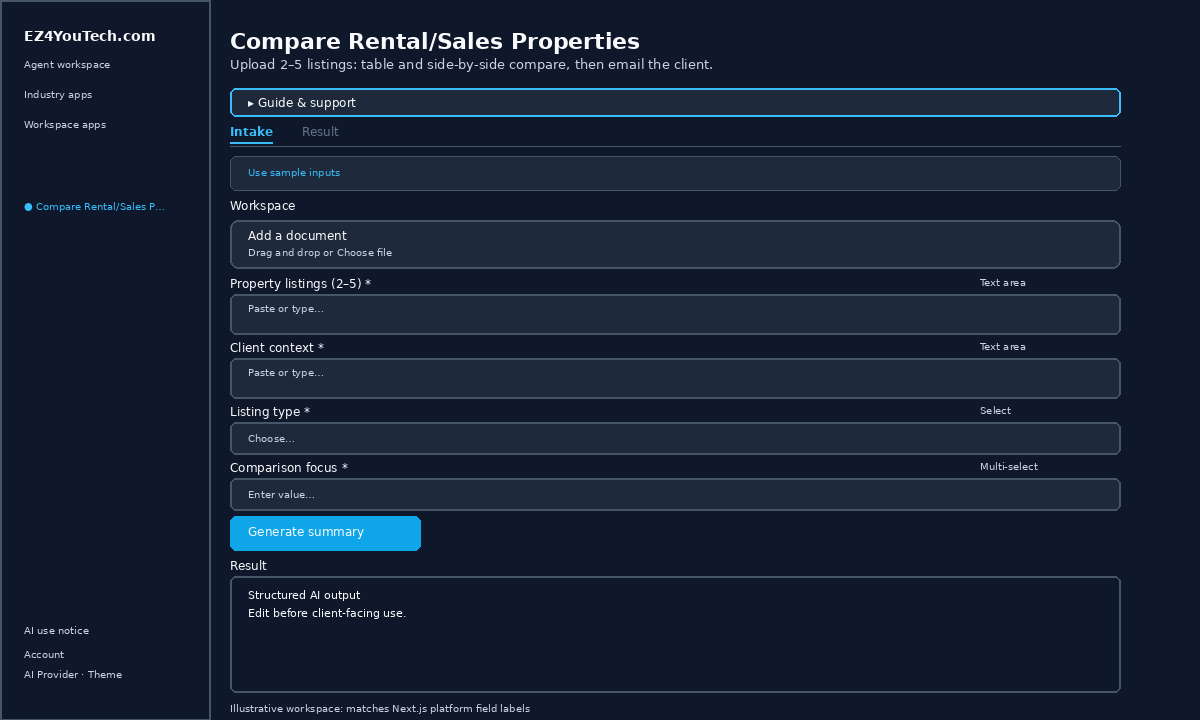
These labels match the live EZ4YouTech.com workspace (sidebar provider + main panel):
- Property listings (2–5) (required): textarea field in the workspace
- Client context (optional): textarea field in the workspace
- Listing type (optional): select field in the workspace
- Comparison focus (optional): multiselect field in the workspace
Primary action button: Generate summary
Workspace overview
Before you start
- Sign in as a team member on your company workspace (admins connect AI accounts separately).
- Confirm your company admin has connected at least one supported AI provider: leading AI services such as OpenAI, Together, Groq, and xAI (Grok); see the full list and pricing comparison in admin BYOS setup.
- Verify your plan includes Standard apps: locked apps show which plan unlocks them.
Step-by-step
- Open the app: In the workspace sidebar, select Compare Rental/Sales Properties under Industry apps.
- Choose your AI provider: In the sidebar, pick the AI provider your company admin connected (your admin sets try-order in BYOS setup).
- Review Guide & support: Expand Guide & support at the top for what the app does, how-to steps, tips, and feedback.
- Acknowledge AI use notice: On first workspace entry each browser session, read the AI use notice and click I understand: continue to workspace.
- Try an example (optional): Click Try an example above the form to load demo values from the tutorial, then edit before you run.
- Paste or type your document: On the Intake tab, add content to Property listings (2–5): paste text or use Try an example to load a demo, then edit before you run.
- Complete additional inputs: In Workspace, fill Client context, Listing type, Comparison focus before you run.
- Run the app: On the Intake tab, click Generate summary. Review output on the Result tab and download if needed.
- Review before client use: Confirm facts, dates, and compliance language. Do not paste full SSN or card numbers.
Example inputs
Paste similar data in the workspace: use only data you are allowed to process. Field names match the live product.
Property listings (2–5)
=== PROPERTY 1: 123 Oak St: For sale ===
Source: oak-listing.pdf
3 bed · 2 bath · 1,850 sqft · $425,000 · Updated kitchen · Cul-de-sac

=== PROPERTY 2: 456 Maple Ave: For rent ===
Source: maple-rental.pdf
2 bed · 1 bath · 1,100 sqft · $2,200/mo · Near transit · Pet-friendly
Upload 2–5 listing PDFs or paste extracted text: one block per property.
Client context
First-time buyer couple: max $450k, need 3 bed, prefer low HOABuyer/renter profile, budget, and must-haves.
Listing type
Mixed rent & saleComparison focus
price and sizeTry these scenarios
Adapt these prompts to your client: do not paste payment card numbers, SSNs, or full IDs.
- Summarize for a client email in plain language (no legalese).
- List only deadlines, dollar amounts, and party names found in the text.
- Highlight exclusions and risks an agent should double-check.
Expected result
Shape of the AI output in the Result panel: review before client use.
Example output (summary)
- Overview: 2–3 sentences on document type and parties
- Key terms: Coverage limits, dates, amounts you provided
- Risks / gaps: Exclusions or missing data called out explicitly
- Next steps: What a human should verify before client use
Tips
- Keep inputs specific: include dates, names, and constraints for better drafts.
- Do not paste full payment card or government ID numbers: use business-appropriate excerpts only.
- If the app is locked, ask your admin to upgrade your plan or confirm AI account setup.